

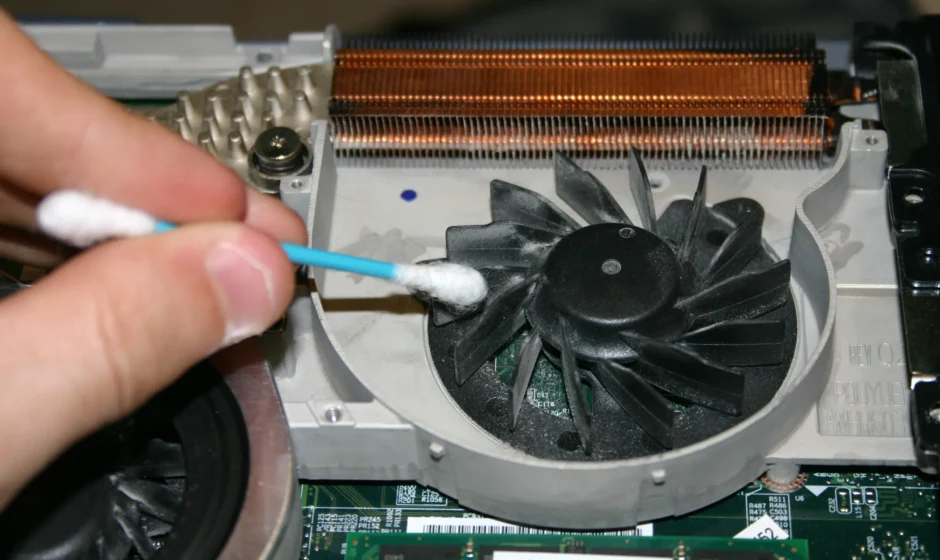

Knowing how to clean laptop fan components is the fastest and safest method to keep your device running smoothly: use a can of compressed air aimed at the exhaust vents for 5-10 seconds in short bursts. For a deeper clean, you will need to open the back panel and physically remove dust from the fan blades every 6-12 months.
A clogged laptop fan is one of the most common causes of performance issues, unexpected shutdowns, and long-term hardware damage. The fix is simple, cheap, and takes under 30 minutes even for a full clean.
Signs Your Fan Needs Cleaning
- Laptop feels hot to the touch – especially the bottom and near the exhaust vent
- Fan runs loudly or constantly, even when doing light tasks
- Performance drops or apps become sluggish during normal use (thermal throttling)
- Laptop shuts down unexpectedly without warning
- You can visibly see dust around the vent grilles
What You Will Need
| Tool | Required / Optional | Notes |
| Compressed air can | Required (Method 1 & 2) | Available at electronics stores for $5-$10 |
| Small Phillips screwdriver | Required (Method 2 only) | Size varies by laptop model – check your manual |
| Soft brush or toothbrush | Optional but helpful | For loosening caked-on dust inside |
| Anti-static wrist strap | Optional (recommended) | Prevents static discharge that can damage components |
| Microfibre cloth | Optional | For wiping down the exterior after cleaning |
Method 1: Without Opening (Compressed Air)
This is the go-to method for regular maintenance and takes about five minutes. It will not remove all the dust, but it keeps airflow functional between deeper cleans.
- Shut down your laptop completely – do not just put it to sleep
- Unplug from the power adapter
- Hold the laptop so the exhaust vent faces upward or outward
- Insert the compressed air nozzle 1-2cm from the vent – do not press it flush against the opening
- Spray in short 2-3 second bursts, not a long continuous blast
- Alternate between the exhaust vent and any intake vents on the bottom
- Wait 30 seconds for any condensation to evaporate before turning back on
Important: hold the fan still if you can access it – letting it spin freely from the air blast can damage the bearings over time.
Method 2: Full Disassembly (Deep Clean)
Do this once a year, or any time Method 1 does not fix the overheating. Always search for your specific laptop model’s disassembly guide on YouTube before starting – the steps below are general.
- Shut down, unplug, and remove the battery if removable
- Remove all back panel screws (keep them in a small container so you do not lose them)
- Gently lift the back panel using a plastic pry tool – never force it
- Locate the fan – it will have a heat pipe (copper tube) running from it to the CPU/GPU
- Use compressed air to blow dust off the fan blades and heatsink fins
- Use a soft brush to loosen any stuck dust from between the heatsink fins
- Wipe fan blades gently with a dry cloth or cotton swab
- Reassemble in reverse order and test immediately
If you see old thermal paste on the CPU while you are in there and the laptop is 3+ years old, this is a good time to reapply it – it makes a significant difference to temperatures.
How Often Should You Clean Based on Environment?
| Environment | Clean Every | Why |
| Carpeted room / pet hair present | 3-4 months | Carpet fibres and pet dander accumulate rapidly in fan intake |
| Smoker’s household | 2-3 months | Smoke residue coats fan blades and clogs heatsink fins fast |
| Clean office / hard floors | 9-12 months | Less particulate in the air, slower accumulation |
| Used outdoors or in dusty environments | 2-3 months | Construction dust, pollen, and soil particles are very fine and invasive |
| Normal home use, hard floors | 6 months | Standard maintenance schedule for most users |
What Happens If You Never Clean It?
Short-term: the fan works harder, runs louder, and the laptop runs hotter. Performance drops as the CPU throttles itself to avoid heat damage.
Long-term: sustained high temperatures degrade solder joints, shorten battery life, and can permanently damage the GPU or CPU. A laptop that regularly runs at 90-95 degrees Celsius is one that will fail earlier than it should.
The cost of a $7 can of compressed air versus an $800 motherboard replacement makes this one of the easiest maintenance decisions you will ever make.
Tips to Reduce Dust Buildup
- Never use your laptop directly on carpet or fabric surfaces – they block intake vents and funnel fibres inside
- Use a laptop stand or cooling pad to lift the base off surfaces and improve airflow
- Keep the room reasonably clean – regular vacuuming noticeably reduces how quickly laptops accumulate dust
- Avoid eating near your laptop – crumbs attract moisture and combine with dust to create a harder-to-remove residue